How to Show Encrypted NTFS Files in Color

Windows uses the NTFS file system to manage your data. Sometimes, you need to know if a file is protected or compressed without opening it. Windows provides a simple visual cue for this.
Why: Using this feature adds a color-coded visual guide to your file list. It helps you quickly identify which files are protected or compressed without needing to check their properties individually.
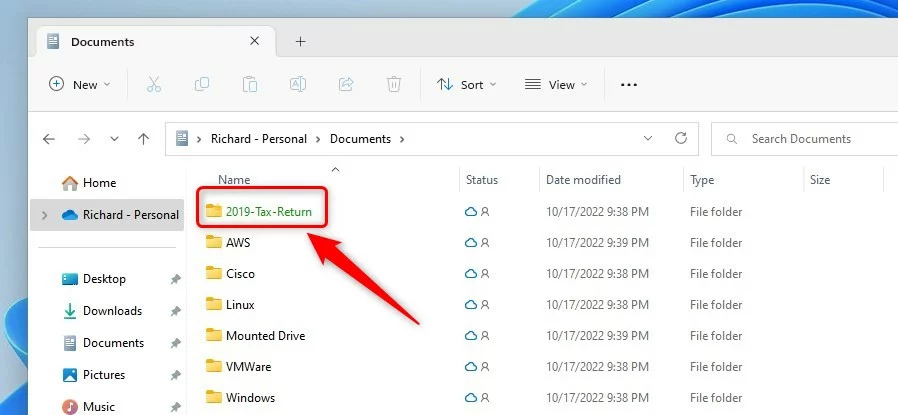
What happens when done: Once enabled, your encrypted files will appear in green text and your compressed files will appear in blue text within File Explorer.
The Difference Between Green and Blue Text
When you enable this setting, Windows uses specific colors to tell you about your files. Green text means the file is encrypted using EFS (Encrypted File System). This keeps your data safe from unauthorized users. Blue text means the file is compressed to save space on your hard drive. This is helpful if you are running low on storage.
How to Show Encrypted NTFS Files in Color
Follow these steps to change how your files look in Windows 11:
- Open File Explorer by clicking the folder icon or pressing Windows key + E.
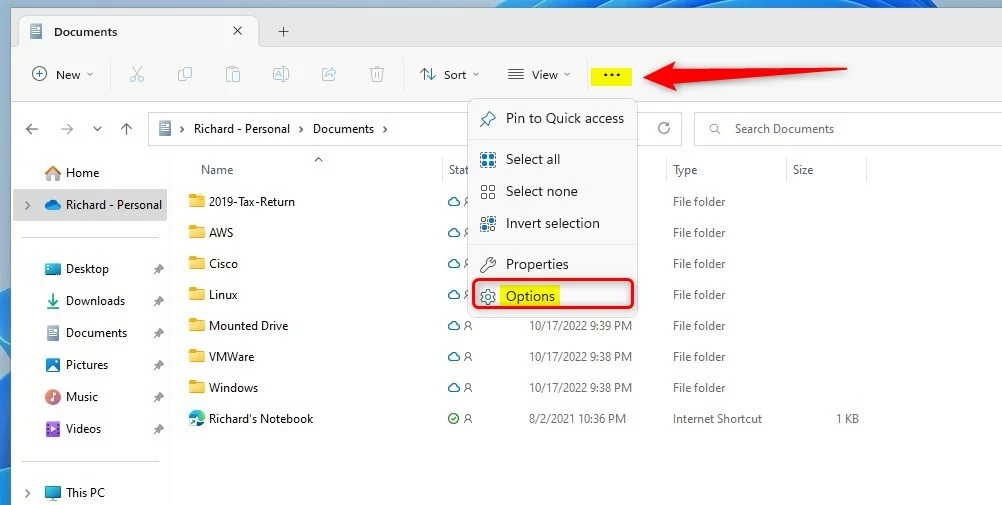
- Click the three-dot menu icon at the top and select Options.
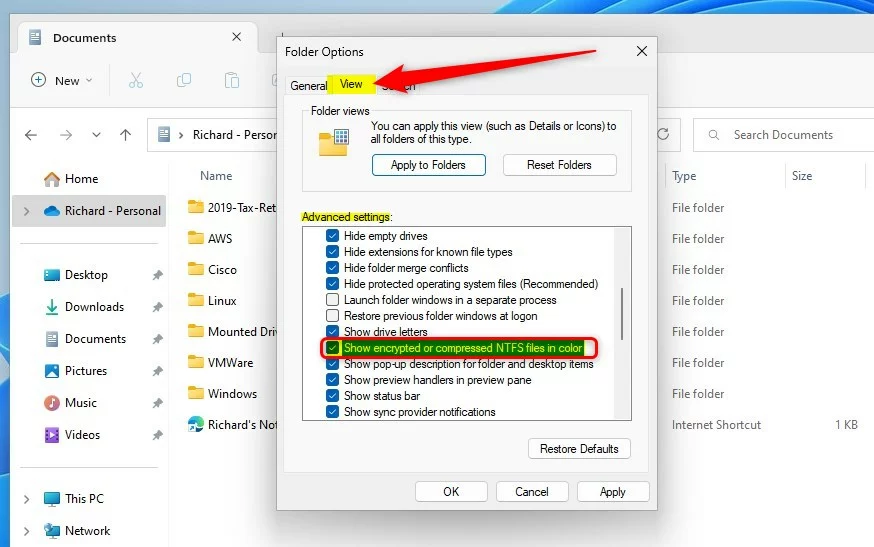
- Click the View tab.
- Find Show encrypted or compressed NTFS files in color in the list.
- Check the box and click OK.
Advanced Configuration: Registry Editor
Warning: Editing the registry can cause system issues if done incorrectly. Always back up your registry before making changes.
You can force this setting using the Registry Editor. Admin Privileges Required: You must be an administrator to perform this task.
HKEY_CURRENT_USER\Software\Microsoft\Windows\CurrentVersion\Explorer\Advanced
Look for the DWORD value named ShowEncryptCompressedColor. Set the value to 1 to enable it or 0 to disable it.
Enterprise Deployment via Group Policy
System administrators can deploy this setting across a network. Use Group Policy Preferences to set the registry key mentioned above for all users in your domain. This ensures consistent visual indicators across your organization.
Summary
Enabling color-coded file names helps you manage your data more effectively. Green indicates EFS encryption for security, while blue indicates NTFS compression for space savings. You can toggle this setting via File Explorer Options or the Registry Editor. This feature is safe, does not affect performance, and is available on all Windows editions.
Why are my encrypted files not showing in color?
If your files are not showing in color, ensure the setting is enabled in File Explorer Options. Also, confirm the files are actually encrypted using EFS. If the file is only compressed, it will show in blue, not green. Check your folder view settings to ensure the option remains checked.
Does enabling this feature impact system performance?
No, enabling the colored display for encrypted or compressed files does not impact your system performance. It is a simple visual setting in the Windows interface that tells the system to change the font color of file names based on their attributes. It does not require extra processing power.
Is this feature available on Windows Home editions?
Yes, this feature is available on Windows Home editions. The ability to view encrypted or compressed files in color is a standard feature of the Windows File Explorer across all versions, including Windows 10 and Windows 11. You can enable it through the Folder Options menu at any time.
Was this guide helpful?




Leave a Reply Cancel reply